 Xeno Leads
The Search Terms Report: Where Your Ad Money Actually Goes
The short answer
Your keywords aren't the searches you pay for. The search terms report in Google Ads lists what people actually typed before your ad showed or got clicked. Sort it by cost, look for job seekers, do-it-yourselfers, supply shoppers and wrong-service searches, and block the junk root words as negative keywords.
Most owners have looked at their keywords. Very few have looked at what people actually typed before they clicked. Those aren't the same list, and the gap between them is where ad money leaks.
Why am I paying for searches I never picked?
Because a keyword isn't a search. A keyword is an instruction to Google: "show my ad to people searching for something like this." A search term is what a real person typed. Google matches one to the other, and it matches more loosely than most people expect.
So you might bid on "auto glass replacement" and pay for clicks from searches like these (made-up examples):
- "auto glass technician jobs"
- "how to replace a windshield yourself"
- "windshield urethane kit"
- "mobile windshield repair" when you only work in the shop
Google lists the searches that triggered your ad in the search terms report. It lists the searches that got your ad shown, and a Keyword column (hidden until you turn it on) shows which of your keywords matched each one (Google Ads Help). It's the closest thing an ad account has to a receipt.
One catch: Google leaves out searches with too little activity, to protect user privacy (Google Ads Help). So the report never shows everything. It still shows plenty.
What kind of junk shows up?
Almost always the same four kinds: job seekers, do-it-yourselfers, supply shoppers and people who want a service you don't offer. Every trade has its own oddities on top of that. The examples below are made up, for a window tint shop and a plumber.
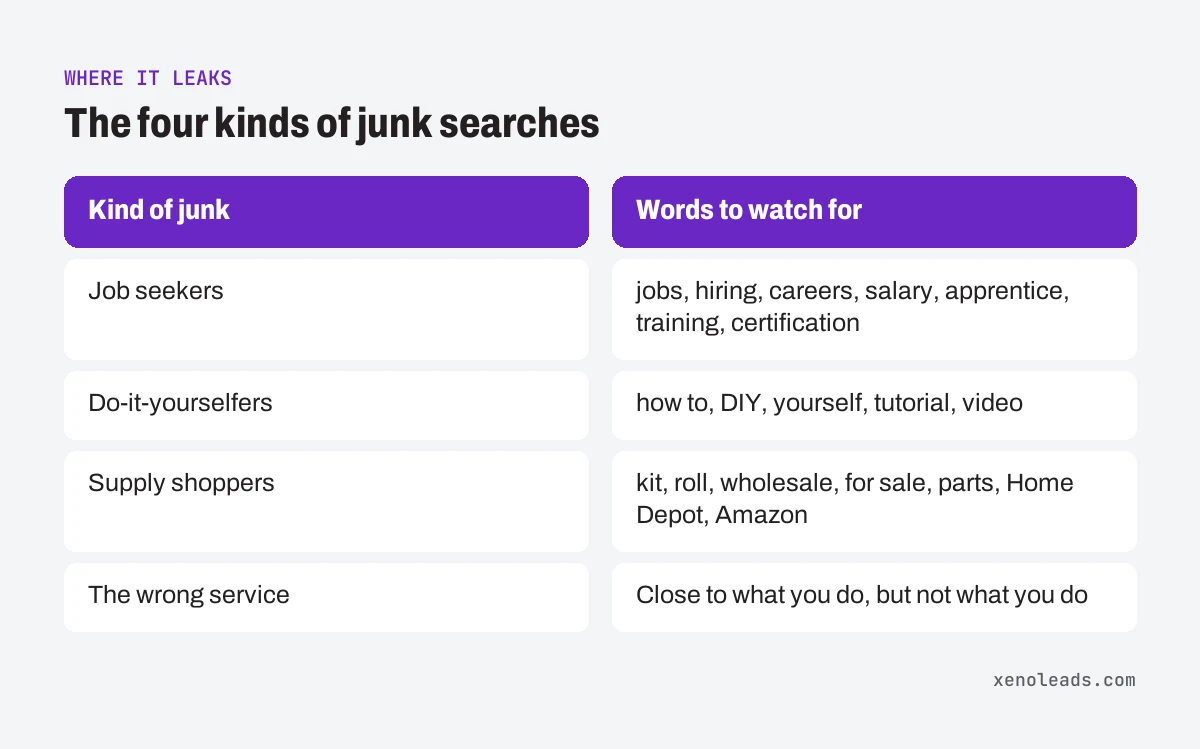
1. Job seekers. People looking for work, not service. Words like jobs, hiring, careers, salary, apprentice, training, certification. "Window tint installer jobs" costs the same as "window tint for my car."
2. Do-it-yourselfers. People who want to do it themselves. Words like how to, DIY, yourself, tutorial, video. "How to unclog a drain with baking soda" will never book a plumber this week.
3. Supply shoppers. People buying the part, not hiring the person. Words like kit, roll, wholesale, for sale, parts, Home Depot, Amazon. "Ceramic tint film roll" is a product search.
4. The wrong service. Searches close to what you do, but not what you do. A residential plumber paying for "commercial sewer line inspection." A car tint shop paying for "home window film" when they don't do houses. These are the hardest to spot, because the search looks almost right.
How to check it yourself
Pick a quiet stretch when the phone isn't ringing. Look at the last 30 days.
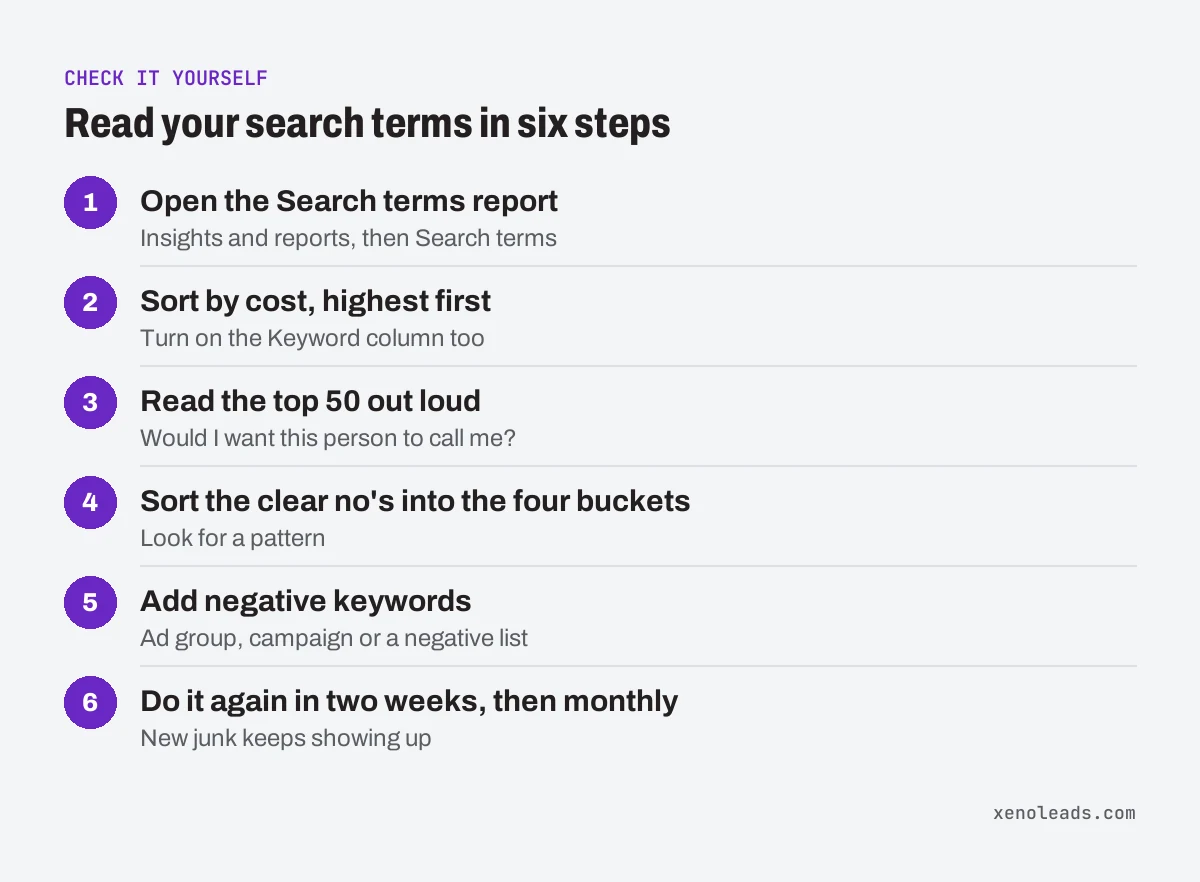
- Open the report. In Google Ads, click Campaigns, open Insights and reports, then click Search terms (Google Ads Help). (If the menu has moved, search for "search terms" in the account's search bar.)
- Sort by cost, highest first. Start where the money went, not where the clicks were. Turn on the Keyword column too, from the columns menu under Attributes (Google Ads Help).
- Read the top 50 out loud. For each one, ask: "Would I want this person to call me?" Mark the ones that are a clear no.
- Sort those into the four buckets above. You'll usually see a pattern. Maybe it's mostly job seekers, or mostly one wrong service.
- Add negative keywords. A negative keyword tells Google not to show your ad for searches that contain it. Tick the junk terms, click Add as negative keyword, and choose where it goes: the ad group or campaign, or a negative keyword list (Google Ads Help). A list lets one set of negatives cover several campaigns.
- Put it on the calendar. Do it again in two weeks, then monthly. New junk shows up as Google finds new searches to match.
What should I watch out for when I block searches?
Three things: block the root word, don't block a word you need, and remember that negatives are literal.
Block the junk word, not the whole search. If "window tint installer jobs" and "tint jobs hiring" both show up, the common problem is jobs. Negatives you add from the report go in as exact match by default (Google Ads Help), and an exact match negative only blocks that search with no extra words (Google Ads Help). So also add jobs on its own as a broad match negative. Broad is the default type for negatives, and it blocks any search that contains all its words, in any order (Google Ads Help). One word, every version of the job search, including the ones you haven't seen yet.
Don't block a word you need. Before you add a short negative, check it against your own keywords. A tint shop that also sells film to other installers shouldn't block film roll. A plumber who does commercial work shouldn't block commercial.
Remember that negatives are literal. Your keywords match similar searches, but your negatives don't. Google says negatives "don't match to close variants," and you'll need to add singular or plural versions and synonyms yourself. They do handle capital letters and misspellings on their own (Google Ads Help). So blocking job doesn't block jobs. Add both. (Here's why exact match works that way.)
What we do about it
We read the search terms on every account we run, every week, starting with the most expensive. Junk gets blocked by its root word, after we check that the word isn't in anything the shop actually sells. Anything we're unsure about goes to the owner as a question first. A wrong negative costs more than a wasted click, because it silently blocks good customers.
Check this one off your list
This is item 10 on our free Lead Leak Checklist: "You pay for searches and leads you'd never take." The other 11 items are things you can check yourself, the same way.
Sources
- About the search terms report (support.google.com)
- Get negative keyword ideas using the search terms report (support.google.com)
- About negative keywords (support.google.com)