 Xeno Leads
Can I Ask Customers for Google Reviews? Yes. Here's the Line
The short answer
Yes, you can ask customers for Google reviews. Ask every customer, right after the job, with your direct review link. Google doesn't allow asking only the customers you expect to be happy, or offering discounts, freebies or payment for reviews. The FTC's rule also bans paying for reviews that must be positive and groundless threats over bad ones.
You finish a job, the customer says you did great, and you think about asking for a Google review. Then you wonder if asking is even allowed, or if it'll get you in trouble.
It's allowed. There are just a few things you can't do while asking.
Can I ask my customers to leave a Google review?
Yes. Google's own help pages tell businesses to ask, and say you can send customers to a Google link or have them scan a QR code to leave a review (Google Business Profile Help).
The FTC is fine with asking too. Its questions and answers on the reviews rule treat a business emailing all of its recent customers to ask for reviews as a "generalized solicitation" (FTC).
So the question isn't whether to ask. It's who you ask and what you offer.
Can I ask only the customers I know were happy?
No. Google's policy for reviews on Maps lists "selectively solicit positive reviews from customers" as rating manipulation, right next to discouraging or prohibiting negative reviews (Maps User Generated Content Policy Help).
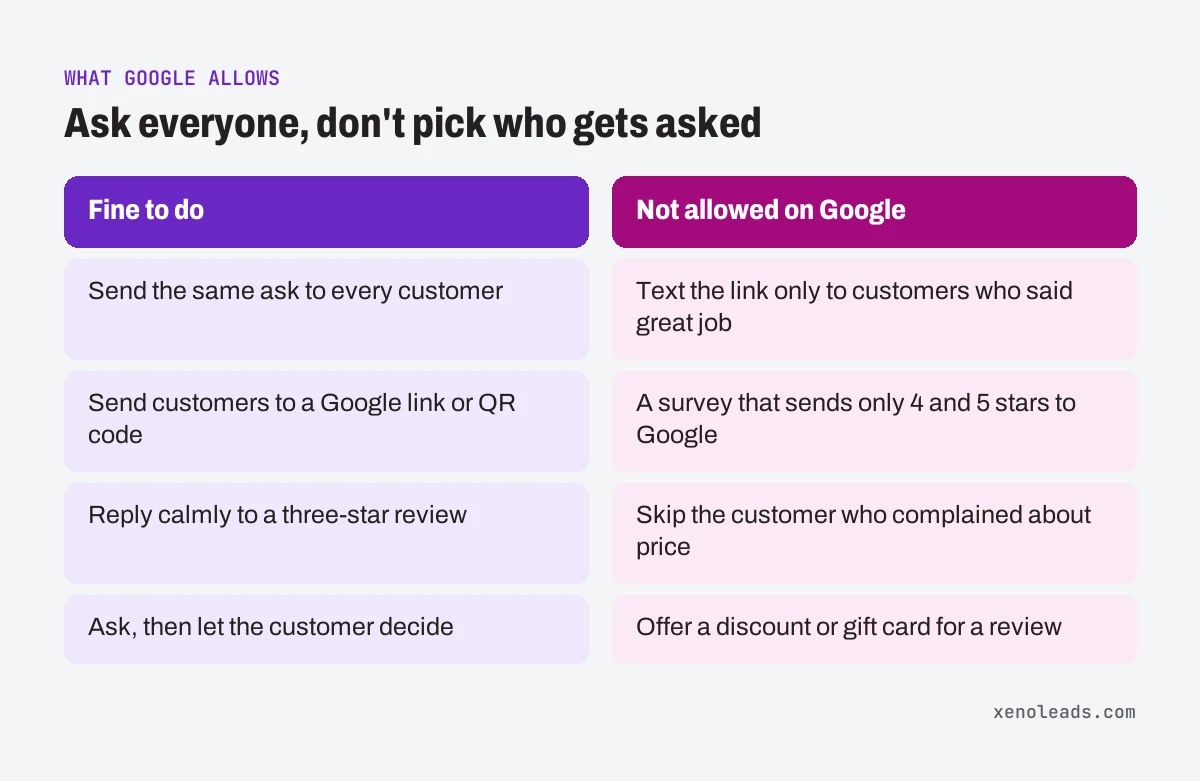
This is what people call review gating. It shows up in a few common forms:
- texting the review link only to customers who said "great job" on the way out
- a survey that sends four and five stars to Google and everyone else to a private form
- skipping the customer who complained about the price, even though the work was fine
The FTC's rule doesn't have a specific ban on this, but the FTC says it could still break the FTC Act (FTC). Google's rule is the plain one. Ask everyone or don't ask.
The same Google policy also says not to require or pressure customers to review on the spot, and not to ask them to put specific things in the review (Maps User Generated Content Policy Help).
Google also points out that "honest and balanced reviews can help potential customers decide," and that a negative review isn't necessarily a sign of poor business practices (Google Business Profile Help). A wall of perfect five-star reviews isn't the goal.
Can I give a discount or a gift card for a review?
Not on Google. Google's policy lists offering incentives "such as payment, discounts, free goods and/or services" in exchange for posting a review, or for changing or removing a negative one, as fake engagement (Maps User Generated Content Policy Help). Its help page calls it "strictly prohibited" (Google Business Profile Help).
That covers the stuff that feels harmless. A discount on the next service. A free filter change. Entry into a drawing. If the customer gets something for leaving the review, it's out.
The federal side went into effect on October 21, 2024 (FTC). The FTC's rule bans paying for reviews that express a particular sentiment, bans reviews from company insiders that don't clearly disclose the connection, and bans using groundless legal threats, intimidation or certain false public accusations to stop or remove negative reviews (FTC).
That last part matters on a bad day. Threatening to sue someone over an honest one-star review, with no real legal basis, is the kind of thing the rule is aimed at. This is general information, not legal advice. If you have a specific situation, read the FTC's questions and answers page or talk to an attorney.
What happens if Google thinks my reviews are fake or paid for?
Google can remove the reviews and also restrict your profile. The examples Google gives for fake engagement include (Google Business Profile Help):
- your profile can't receive new reviews or ratings for a set period
- your existing reviews or ratings are unpublished for a set period
- your profile shows a warning telling customers that fake reviews were removed
Google says it will email the business owner if it plans to apply a restriction (Google Business Profile Help). A warning label on your profile is the opposite of what you were after.
How do I ask the right way?
Same ask, every customer, right after the job, with a direct link. Here's how to set it up today.
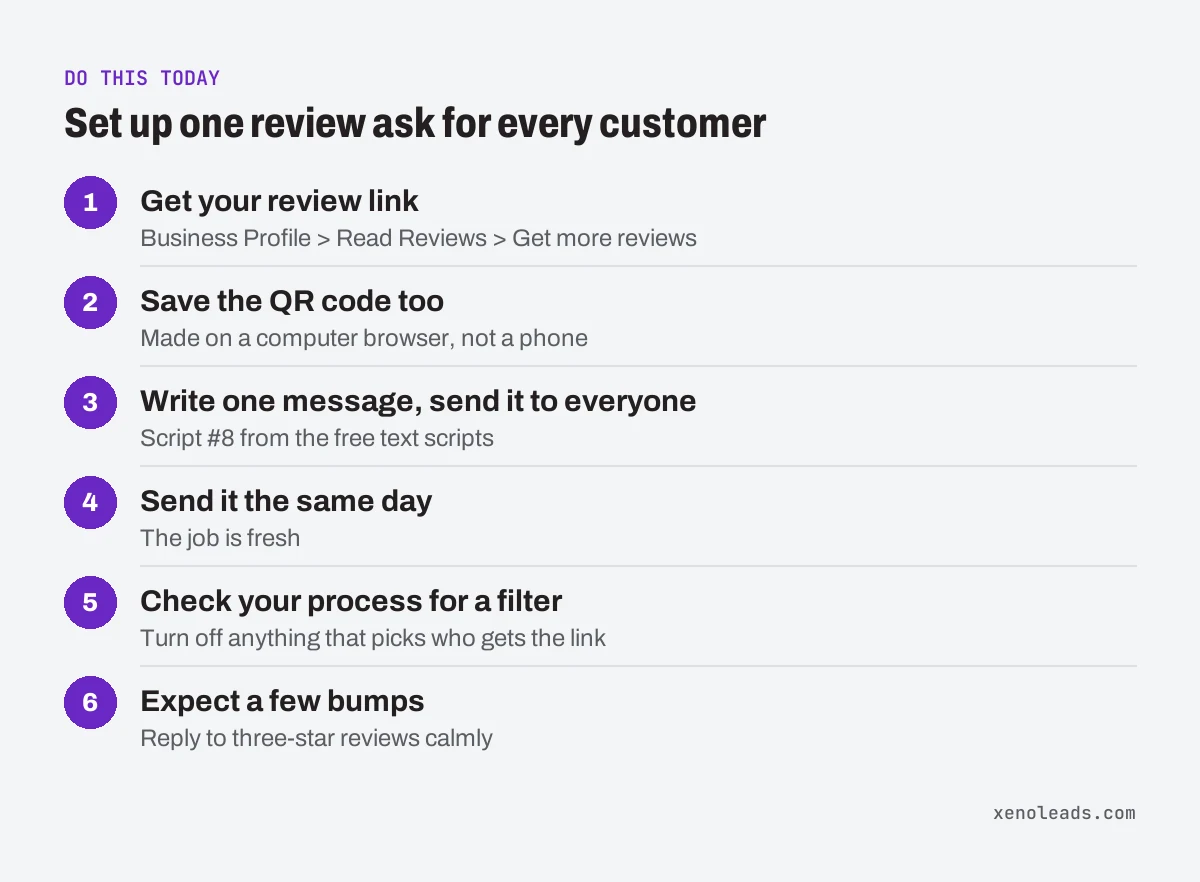
- Get your review link. On a computer, go to your Business Profile, select Read Reviews, then Get more reviews, then Copy (Google Business Profile Help). (If the menu has moved, look on your profile for Get more reviews.)
- Save the QR code too. Same screen. Right-click the code and choose Save image as. Google says review QR codes can only be made on a computer browser, not on a phone (Google Business Profile Help). Put it on invoices or a card you leave behind.
- Write one message and send it to everyone. Here's script #8 from our free text scripts, word for word:
Thanks for choosing {business}, {first name}. If you have a minute, would you leave us a quick review? It helps people in {town} find us: {Google review link}
- Send it the same day. The job is fresh and the customer still has their phone in hand. Texting has its own consent rules, so check with your phone or CRM provider before you send.
- Check your current process for a filter. Look at whatever sends review requests now, whether it's a person or a tool. If anything decides who gets the link based on how happy they seemed, turn that off.
- Expect a few bumps. Some customers will need a Google Account to leave a review, and Google says they can make one with a non-Gmail email address (Google Business Profile Help). Some will leave three stars. Reply to those calmly and move on.
A made-up example: Cedar Ridge Lawn Care (not a real business) used to hand a review card only to customers who complimented the crew. They switched to texting every customer the same message the evening of the visit. Now nobody on the crew decides who gets asked, so there's no filter to explain if Google ever looks.
Want the review text ready to paste?
The review ask above is one of eight short texts in our free Text-Back Scripts, along with missed-call, after-hours and quote follow-up texts. Copy it, swap in your link, and send it to every customer this week.
Sources
- Tips to get more reviews - Google Business Profile Help (support.google.com)
- The Consumer Reviews and Testimonials Rule: Questions and Answers (ftc.gov)
- Prohibited & restricted content - Maps User Generated Content Policy Help (support.google.com)
- Create a Google link or QR code to request reviews - Google Business Profile Help (support.google.com)
- Federal Trade Commission Announces Final Rule Banning Fake Reviews and Testimonials (ftc.gov)
- Business Profile restrictions for policy violations - Google Business Profile Help (support.google.com)